# Cache
## Server-Level Cache
PowerShell Universal provides the ability to use a server-level cache to store data that you use between APIs, Automation and Dashboards. You can configure cache item life times use the `Set-PSUCache` cmdlet in any PowerShell script you run in PowerShell Universal. You can also retrieve items from the cache using `Get-PSUCache`.
Some examples of usages for the cache may be:
* Collecting data with a scheduled job and displaying it within a dashboard
* Collecting data from an API and using it in a job
* Collecting using input from a dashboard and queuing it to run in a scheduled job
#### Setting items in the cache
To set items in the cache, you can use `Set-PSUCache`. Items in the cache are serialized to strings using CLIXML and the PowerShell serializer. When you retrieve objects from the cache, they will no longer be live objects.
```powershell
Set-PSUCache -Key "CurrentDate" -Value (Get-Date)
```
There are three types of cache invalidation techniques you can employ.
#### Absolute Expiration
The `AbsoluteExpiration` parameter defines at what time the item in the cache is invalidated.
The follow example invalidates the cache item after 10 minutes.
```powershell
Set-PSUCache -Key "CurrentDate" -Value (Get-Date) -AbsoluteExpiration (Get-Date).AddMinutes(10)
```
#### Absolute Expiration From Now
The `AbsoluteExpirationFromNow` parameter defines when a cache item is invalidated using a TimeSpan rather than a calculated DateTime.
The following cache item is invalidated 1 hour from now.
```powershell
Set-PSUCache -Key "CurrentDate" -Value (Get-Date) -AbsoluteExpirationFromNow ([TimeSpan]::FromHours(1))
```
#### Sliding Expiration
The `SlidingExpiration` parameter allows you to defines the amount of time before the cache item is invalidated. Each time the cache item is accessed, the timer is reset.
The following cache item will be invalidated in 5 minutes. If it's accessed within those 5 minutes, it will be reset for another 5 minutes.
```powershell
Set-PSUCache -Key "CurrentDate" -Value (Get-Date) -SlidingExpiration ([TimeSpan]::FromMinutes(5))
```
## Getting items from the cache
You can use the `Get-PSUCache` cmdlet to retrieve items from the cache. You simply need to supply the key of the item you wish to retrieve. The deserialized object will be returned from the cmdlet.
```powershell
Get-PSUCache -Key "CurrentDate"
```
## Persistent Cache
You can use the `-Persist` parameter of `Set-PSUCache` to store data within the database. This allows for distributed caching and a cache the will survive restarts of the PowerShell Universal service.
```powershell
Set-PSUCache -Key "CurrentDate" -Value (Get-Date) -Persist
```
### Clearing the Cache
You can remove items from the cache using `Remove-PSUCache` or `Clear-PSUCache` .
```powershell
# Remove a specific item
Remove-PSUCache -Key 'Key123'
# Clear the entire cache
Clear-PSUCache
```
## $Cache Scope
APIs, Automation scripts and Dashboards all support a $Cache scope. This scope is used to cache data across runspaces that will persist in memory of each of the execution environments.
For example, if you set a $Cache variable in a dashboard, then it will not be available in an API. This is not true when using the Integrated environment. If a dashboard and API both use the integrated environment, then they share the cache scope.
You can set and retrieve data from the cache scope using variable assignment and retrieval syntax.
```powershell
$Cache:MyValue = "Hello"
Write-Host $Cache:MyValue
```
`$Cache` Scope vs Server-Level Cache: The `$Cache` scope differs from the server-level cache as it only resides in the execution environment of feature you are using. They are different and cannot be used to get the other one.
## Viewing the Cache
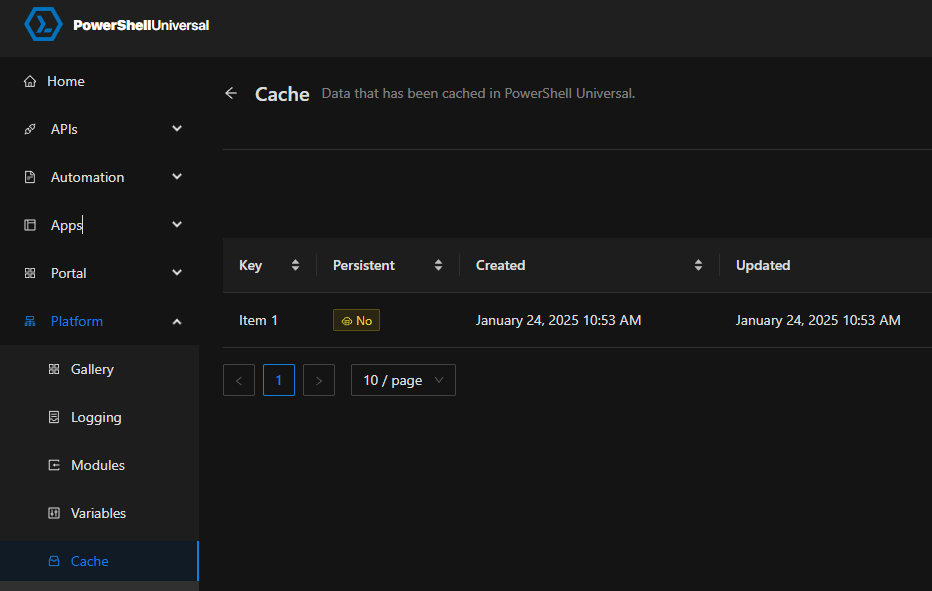
You can view the server-level cache in the admin console by navigating to Platform \ Cache.
Viewing cached data
## API
* [Get-PSUCache](https://github.com/ironmansoftware/universal-docs/blob/v5/cmdlets/Get-PSUCache.txt)
* [Set-PSUCache](https://github.com/ironmansoftware/universal-docs/blob/v5/cmdlets/Set-PSUCache.txt)
* [Remove-PSUCache](https://github.com/ironmansoftware/universal-docs/blob/v5/cmdlets/Remove-PSUCache.txt)
* [Clear-PSUCache](https://github.com/ironmansoftware/universal-docs/blob/v5/cmdlets/Clear-PSUCache.txt)
---
# Agent Instructions: Querying This Documentation
If you need additional information that is not directly available in this page, you can query the documentation dynamically by asking a question.
Perform an HTTP GET request on the current page URL with the `ask` query parameter:
```
GET https://docs.powershelluniversal.com/platform/cache.md?ask=
```
The question should be specific, self-contained, and written in natural language.
The response will contain a direct answer to the question and relevant excerpts and sources from the documentation.
Use this mechanism when the answer is not explicitly present in the current page, you need clarification or additional context, or you want to retrieve related documentation sections.